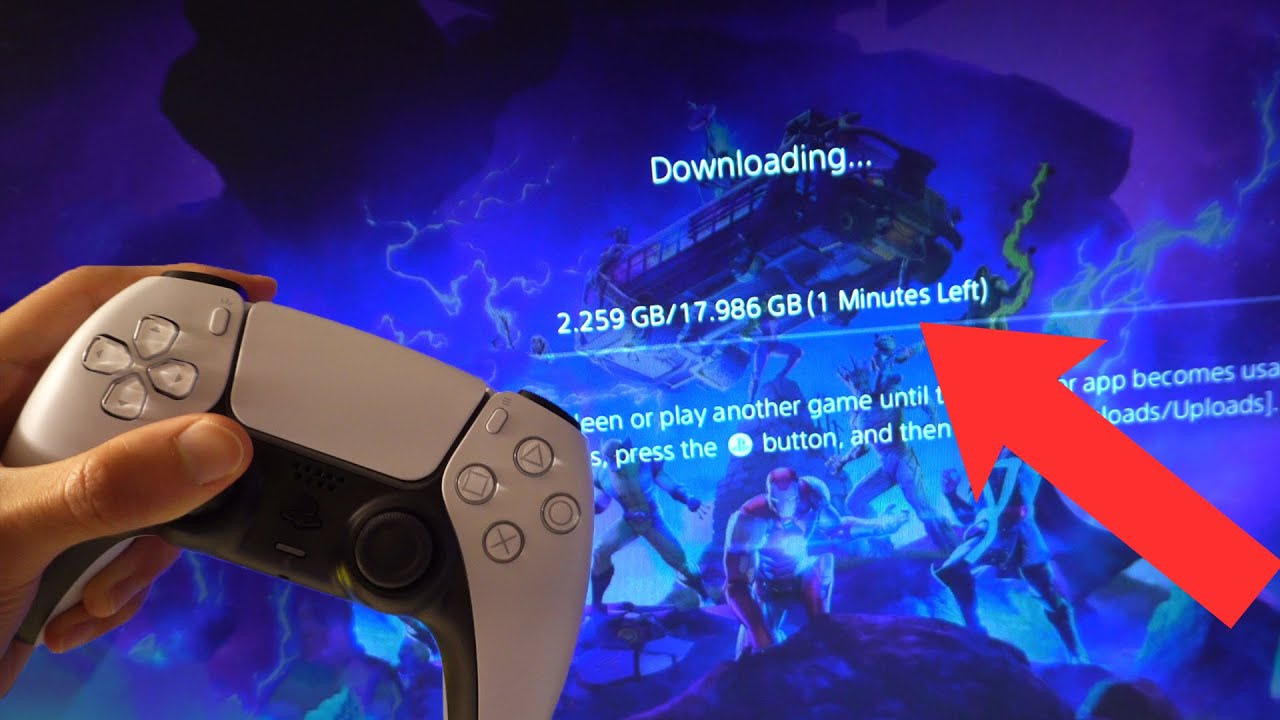
If you just unboxed a PS5, dusted off an old one, or you’re simply ready to drop into the island for the first time, getting Fortnite up and running is one of the easiest things you’ll do on your console. That said, there are a few small details — from account linking to storage requirements to that annoying “available for PS4 only” message some people still run into — that trip up even experienced gamers.
This guide walks you through every step of downloading, installing, and launching Fortnite on your PS5 in 2026, plus a few extras: how to fix common errors, how to link your Epic account properly, how to manage storage, and how to get the best performance settings once you’re in the game.
Let’s get you into the Battle Bus.
Why Fortnite on PS5 Is Different From PS4
Before jumping into the steps, it helps to understand one quirk of the PS5 version of Fortnite: it isn’t just a straight upgrade sitting on top of your old PS4 copy. Epic Games built a dedicated PS5 version of the game that takes advantage of the console’s SSD speeds, the DualSense controller’s haptic feedback, and higher frame rates.
Because of this, if you’re moving from a PS4 to a PS5, you can’t simply “carry over” the game the way you might with some other titles. You’ll need to download the PS5-specific version from the PlayStation Store, even if Fortnite already shows up in your library. The good news is your account progress, skins, V-Bucks, Battle Pass, and stats all carry over automatically as long as you sign in with the same account — nothing is lost in the switch.
What You’ll Need Before You Start
A few basics to check off before you download anything:
A Stable Internet Connection
Fortnite is an online-only game (aside from limited offline practice modes), so your PS5 needs to be connected to Wi-Fi or, ideally, a wired Ethernet connection for the smoothest download and the most stable in-game performance.
Enough Storage Space
Fortnite’s install size has grown steadily over the years as new content, chapters, and modes (like Fortnite Festival, Rocket Racing, and LEGO Fortnite) have been added. As of 2026, you should set aside at least 30–35 GB of free space to comfortably install the game and leave room for updates. Larger seasonal updates can temporarily require additional space, so it’s smart not to cut it too close.
A PlayStation Network (PSN) Account
You’ll need to be signed in to a PSN account on your PS5. If you’re setting up a brand-new console, the system will walk you through creating or signing into your account during initial setup.
An Epic Games Account (Recommended)
While you technically can play using just your PSN sign-in, linking an Epic Games account gives you access to cross-progression, easier account recovery, two-factor authentication security, and the ability to check your stats and locker from a phone or PC. It only takes a couple of minutes to set up if you don’t already have one.
Step-by-Step: Downloading Fortnite on PS5
Here’s the exact process, broken down step by step.
Step 1: Power On Your PS5 and Confirm Your Connection
Turn on your console and make sure it’s connected to the internet. You can check this quickly by going to Settings > Network and confirming you see “Internet Connection: Connected.” If you’re not connected, connect to Wi-Fi or plug in an Ethernet cable before continuing — trying to browse or download without a connection will just lead to errors.
Step 2: Open the PlayStation Store
From the PS5 home screen, navigate to the PlayStation Store icon (it looks like a shopping bag) in the top menu bar and select it.
Step 3: Search for Fortnite
Once inside the Store, <cite index=”1-1,3-1″>use the search function at the top of the screen and type in “Fortnite.”</cite> The official Fortnite game tile, published by Epic Games, should appear at the top of the results. Make sure you’re selecting the correct listing — there are also Fortnite-branded add-ons and cosmetic bundles that show up in search, so look specifically for the main game page.
Step 4: Open the Game Page and Select Download
Tap into the Fortnite game page. Since Fortnite is free-to-play, you won’t be charged anything, but depending on your region and account settings, you may still see a “Get”, “Download”, or “Buy” button (some regions show a $0.00 checkout screen as a formality). Select it, confirm if prompted, and the download will begin.
Step 5: Wait for the Download and Installation
Fortnite will now download in the background. You can back out to the home screen and keep using your PS5 normally — the download will continue, and you’ll see a progress notification. Depending on your internet speed, this can take anywhere from 10 minutes to over an hour for a fresh install.
You can check progress anytime by going to your Game Library and looking at the Fortnite tile, which will show a download percentage.
Step 6: Launch the Game
Once the download and installation finish, select the Fortnite icon from your home screen or library and press play. The first time you launch it, the game may run a quick additional update or verification check — this is normal and usually takes just a minute or two.
Fixing the “Available for PS4 Only” Error
This is one of the most common points of confusion, especially for people upgrading from an older console. If you try to launch Fortnite on your PS5 and see a message saying the game is only available for PS4, don’t panic — it just means you’re opening the PS4 version instead of the dedicated PS5 build.
Here’s the fix:
- Go back to the PlayStation Store.
- Search for Fortnite again.
- Confirm the listing shown is tagged for PS5 (the Store differentiates versions on the game page, usually with a toggle or tab for “PS4” and “PS5”).
- Download the PS5-specific version, even though Fortnite already appears to be installed.
This extra download step exists because the PS5 version is a technically separate build optimized for the console’s hardware, not a simple patch. Once it’s downloaded, your existing progress, purchases, and Epic account link will carry over automatically.
Linking or Creating Your Epic Games Account
To get the full Fortnite experience — cross-platform progression, account security, and access to your locker from other devices — you’ll want to link an Epic Games account to your PSN sign-in.
If You Already Have an Epic Account
- Launch Fortnite.
- When prompted, select Sign In and choose to link an existing Epic Games account.
- Enter your Epic email and password (or sign in through a linked service like Google or Apple, if that’s how your account was set up).
- Confirm the link. Your existing skins, V-Bucks, and stats will now be tied to your PS5 profile.
If You Don’t Have an Epic Account Yet
- From the same sign-in prompt, select the option to create a new Epic Games account.
- Follow the on-screen steps to set an email, password, and display name.
- Verify your email address when prompted — you’ll typically need to do this before you can make purchases or access certain features.
- Once verified, your new Epic account will be linked to your PSN profile automatically.
It’s worth turning on two-factor authentication (2FA) for your Epic account once it’s set up. Not only does this protect your account and purchases, but Epic also periodically rewards accounts with 2FA enabled with free in-game items.
Managing Storage Space
Fortnite’s file size isn’t static — it grows with each major content update, and Epic regularly adds new modes and experiences under the Fortnite umbrella (Battle Royale, Fortnite Festival, Rocket Racing, LEGO Fortnite, and more), each of which can have its own downloadable content.
A few tips to keep your PS5 storage in good shape:
- Check your available space under Settings > Storage before installing, and periodically afterward.
- Delete unused game modes if you only play Battle Royale — some of Fortnite’s sub-experiences can be uninstalled separately without affecting your main save data or progress.
- Use an external SSD if you’re running low on internal storage. PS5 supports USB extended storage for PS4 games and additional apps, and an internal M.2 SSD upgrade for PS5-native titles like Fortnite if you need more headroom long-term.
- Keep some buffer space free. Seasonal updates can be large, and downloading them with almost no free storage can cause installation failures.
Setting Up Fortnite for the Best PS5 Performance
Once the game is installed and you’re signed in, it’s worth spending two minutes in the settings menu before your first match.
Choosing a Performance Mode
Fortnite on PS5 typically offers multiple display/performance modes, letting you prioritize either:
- Performance Mode – higher and more stable frame rates, ideal for competitive play.
- Resolution/Fidelity Mode – sharper visuals at the cost of frame rate.
Most competitive players stick with performance-focused settings since reaction time matters more than visual fidelity in a fast-paced battle royale.
Adjusting Controller Settings
The DualSense controller supports adaptive triggers and haptic feedback in Fortnite, which can add useful tactile cues (like feeling the difference between weapons) but some players find it distracting in competitive play. You can toggle these under Settings > Controller within the game if you’d rather turn them off for a more traditional feel.
Audio and Accessibility Options
Fortnite has robust accessibility settings, including visual cues for audio, colorblind modes, and subtitle options. It’s worth a quick look through the accessibility menu, especially if you’re introducing a younger player or someone with specific visual or auditory needs to the game.
Setting Up Parental Controls (If Needed)
If you’re setting this up for a younger player, PS5 and Epic both offer robust parental control systems:
- PlayStation Family Settings let you manage playtime limits, spending limits, and communication restrictions directly from your PSN account or the PlayStation App.
- Epic Games Account Parental Controls allow you to restrict voice chat, control purchases, and set playtime reminders specifically within Fortnite and other Epic titles.
Setting both up together gives you the most complete control over a younger player’s experience, covering both console-level and account-level restrictions.
Troubleshooting Common Download and Install Issues
Even with a straightforward process, a few issues pop up often enough to be worth covering.
Download Stuck or Frozen
If your download appears stuck at a specific percentage for an extended period:
- Pause and resume the download from your Game Library.
- Restart your PS5.
- Check your internet connection speed and stability.
- If the issue persists, try deleting the partial download and starting fresh from the PlayStation Store.
“Insufficient Storage” Error
This simply means you don’t have enough free space. Head to Settings > Storage, review what’s installed, and either delete unused games/apps or add external storage.
Can’t Find Fortnite in the Store
Occasionally, a search hiccup or regional storefront issue can make Fortnite hard to locate. <cite index=”6-1″>If you’re having trouble finding Fortnite within the PlayStation Store, you can also try downloading it manually from your PlayStation Game Library</cite> instead of searching fresh from the Store front page.
Login or Account Link Errors
If you’re having trouble linking your Epic account:
- Double-check you’re entering the correct email and password.
- Make sure your Epic account email is verified.
- Try unlinking and relinking the account from the Epic Games website if the in-game prompt keeps failing.
- Confirm your Epic account isn’t already linked to a different PSN account, which can block a new link attempt.
Game Crashes on Launch
If Fortnite crashes immediately after opening:
- Make sure you’ve downloaded the PS5-specific version, not the PS4 build.
- Check for a pending system software update on your PS5 under Settings > System > System Software.
- Rebuild your PS5 database by restarting in Safe Mode (hold the power button until you hear two beeps) and selecting the rebuild database option.
- As a last resort, delete and reinstall the game.
Frequently Asked Questions
Is Fortnite really free on PS5? Yes. Fortnite Battle Royale, along with modes like Fortnite Festival, Rocket Racing, and LEGO Fortnite, are all free to download and play. Optional purchases (Battle Pass, cosmetics, in-game currency) are available but never required to play.
Do I need PlayStation Plus to play Fortnite on PS5? No — Fortnite is one of a handful of games classified as “free-to-play with online multiplayer,” meaning you can play its online multiplayer modes without a PS Plus subscription, unlike most other online PS5 games.
Will I lose my progress moving from PS4 to PS5? No. As long as you sign in with the same PSN account (and/or linked Epic account), your skins, V-Bucks, Battle Pass progress, and stats all transfer automatically.
Can I play Fortnite on PS5 with friends on other platforms? Yes. Fortnite supports cross-platform play across PS5, Xbox, PC, Nintendo Switch, and mobile, so you can squad up with friends regardless of what they’re playing on.
How often does Fortnite update, and will I need to redownload it each time? Fortnite receives regular updates, including smaller patches and larger seasonal updates at the start of each new season. These download automatically when you launch the game if a new version is available — you won’t need to manually search and redownload the whole game again after the initial PS5 install.
Final Thoughts
Getting Fortnite installed on your PS5 is a five-minute job once you know the steps — the only real snag most players hit is forgetting that the PS5 version needs its own download separate from an old PS4 copy. Once that’s sorted and your Epic account is linked, you’re set up for cross-progression, security, and access to everything Fortnite has grown into: Battle Royale, Fortnite Festival, Rocket Racing, LEGO Fortnite, and whatever new mode Epic rolls out next.
Take a few minutes to dial in your performance settings and controller preferences before your first match, and you’ll be dropping into the island with everything running the way it should. See you on the battle bus.

Alex Smith
I’m a dedicated gamer who loves exploring games, mastering gameplay mechanics, and sharing gaming knowledge. I stay updated with the latest releases, tips, and strategies to improve performance and enjoyment. Gaming is my passion and my skill.