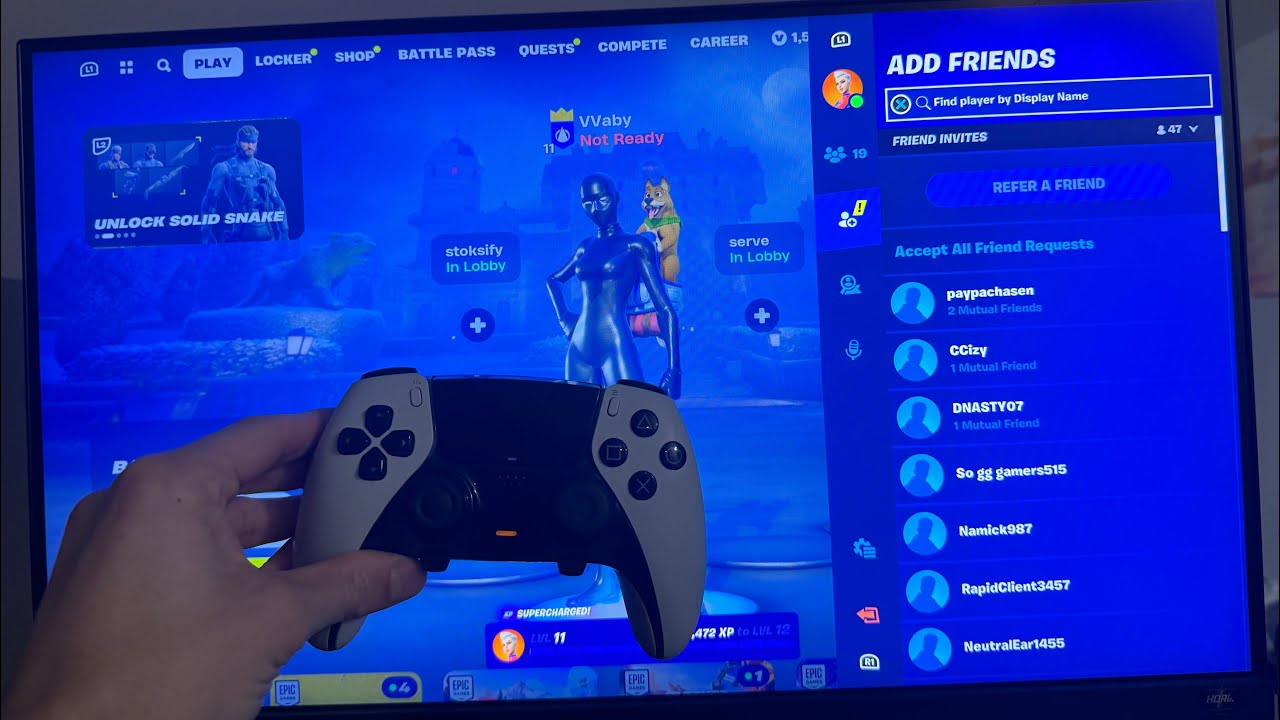
Fortnite stopped being “just a battle royale game” a long time ago. It’s a hangout spot, a party planner, a concert venue, and honestly, for a lot of people, the main way they stay in touch with friends who live across the country. But none of that matters if you can’t actually get your friends added to your friends list in the first place.
If you’ve ever stared at that little “Add Friend” button and wondered why it’s not working, or spent ten minutes trying to figure out someone’s Epic ID, or gotten stuck because your friend plays on a different console than you — this guide is for you. We’re going to walk through every single method, on every platform, in plain language, with real troubleshooting tips for the stuff that usually goes wrong.
Let’s get into it.
Why Adding Friends on Fortnite Isn’t Always Straightforward
Before we jump into the “how,” it helps to understand the “why it’s confusing” part.
Fortnite runs on something called an Epic Games Account, which is separate from your PlayStation Network account, your Xbox Live account, your Nintendo Account, or your Google/Apple mobile login. Epic built it this way specifically so the game could support cross-platform play — meaning a PS5 player, an Xbox player, a Switch player, and a PC player can all squad up in the same match.
The upside of this system is huge: your friends list follows you everywhere. Add someone once, and you’ll see them online whether you’re on your console, your PC, or your phone.
The downside is that a lot of people don’t realize their “real” identity in Fortnite is their Epic Display Name, not their PSN gamertag or Xbox tag. That mismatch is where most of the confusion happens. Once you understand that Epic Account is the master key, everything else gets a lot easier.
Step 1: Find Your Epic Display Name (Do This First)
Before you can add anyone, or be added, you need to know your own Epic Display Name. This is the name that shows up when someone searches for you — not your console gamertag.
On console or PC (in-game):
- Launch Fortnite.
- Open the main menu.
- Look in the top-left or top-right corner of the lobby screen — your Epic Display Name is usually shown there next to your account icon.
Through your Epic Games Account online:
- Go to Epic’s account settings page in a browser.
- Log in with the account linked to your Fortnite profile.
- Your display name will be listed under account details.
Once you know this name, share it with the friend you’re trying to connect with, or ask them for theirs. This single piece of information solves 90% of “I can’t find my friend” problems.
Method 1: Adding Friends In-Game (Works on Every Platform)
This is the most universal method, and it works basically the same way whether you’re on PlayStation, Xbox, Switch, PC, or mobile.
Step-by-Step:
- Open Fortnite and get to the main lobby.
- Open the Social Panel. Look for an icon that looks like two people, usually located on the right side of the screen (PC/console) or accessible via a tab at the bottom (mobile).
- Click or tap “Add Friend.”
- Type in the Epic Display Name of the person you want to add. Note: this is case-sensitive on some platforms, and you may need to include the numbers Epic sometimes appends to a name (like “PlayerName#1234”) if the exact name is already taken by someone else.
- Select the correct profile from the search results. If multiple accounts show up with similar names, double-check the small ID tag next to the name to make sure you’re adding the right person.
- Send the request.
Your friend will get a notification the next time they open Forttnite (or immediately, if they’re online). Once they accept, you’ll both show up in each other’s friends list, ready to party up.
Common Hiccup: “Player Not Found”
If the search comes up empty, it’s almost always one of these issues:
- You typed the console gamertag instead of the Epic Display Name.
- There’s a typo or the name has special characters you’re missing.
- Your friend has their account privacy settings restricted (more on this below).
Method 2: Adding Friends via Epic Games Launcher (PC Only)
If you’re on PC, you don’t even need to open Fortnite to add someone — you can do it right from the Epic Games Launcher, the app you use to download and launch the game.
Step-by-Step:
- Open the Epic Games Launcher.
- Click your profile icon in the top-right corner.
- Select “Friends.”
- Click the “+” or “Add Friend” button.
- Enter their Epic Display Name or the email associated with their Epic account.
- Hit send.
This method is especially handy if you’re trying to add someone before a play session even starts, or if you want to organize your friends list without loading into the full game.
Method 3: Adding Friends on PlayStation (PS4 & PS5)
PlayStation players have two real options here: adding through Fortnite itself (Method 1 above), or linking accounts so PSN friends show up automatically.
Option A: In-Game Method
Same steps as above — open the social panel, search Epic Display Name, send request.
Option B: Automatically Sync PSN Friends
Fortnite has a feature that can suggest friends based on who’s already on your PlayStation Network friends list.
- Open Fortnite on your PS4 or PS5.
- Go to the Social Panel.
- Look for a tab or button labeled “Suggested” or “Platform Friends.”
- Fortnite will scan your PSN friends list and show you which of them also play Fortnite.
- Tap “Add” next to any names you recognize.
This is a great shortcut if most of your PlayStation friend group already plays the game — no need to manually search each one.
PlayStation-Specific Tip
If a friend recently switched from Xbox or Switch to PlayStation, their Epic Display Name stays the same because it’s tied to their Epic account, not the console. Don’t panic if their PSN gamertag doesn’t match what you remember — search by Epic name instead.
Method 4: Adding Friends on Xbox (Xbox One & Xbox Series X/S)
Xbox works almost identically to PlayStation, with its own version of the automatic-suggestion feature.
Option A: In-Game Method
Standard process: Social Panel > Add Friend > type Epic Display Name > send.
Option B: Xbox Live Friend Suggestions
- Launch Fortnite.
- Open the Social Panel.
- Select the tab for suggested or platform friends.
- Fortnite cross-references your Xbox Live friends list.
- Add anyone shown who already has an Epic account linked.
Xbox-Specific Tip
Make sure your Xbox Live privacy settings allow apps to see who’s on your friends list. If suggestions aren’t populating, head into your Xbox privacy settings and confirm that “Others can see your friends list” or similar permissions aren’t set to fully private.
Method 5: Adding Friends on Nintendo Switch
Switch is a slightly different story because Nintendo’s online friend system isn’t as deeply integrated with third-party games as PlayStation or Xbox.
Step-by-Step:
- Open Fortnite on your Switch.
- Go to the Social Panel (accessible via the menu on the right side of the lobby).
- Select Add Friend.
- Enter the Epic Display Name manually.
- Send the request.
Unlike PlayStation and Xbox, Switch generally doesn’t offer automatic friend-suggestion syncing based on your Nintendo Friend List, so manual entry using the Epic Display Name is your most reliable route here.
Switch-Specific Tip
Because Joy-Con text entry can be slow and clunky, it’s often faster to type the name using a connected USB or Bluetooth keyboard if you have one, or to have your friend send you their name as text so you can copy the exact spelling.
Method 6: Adding Friends on Mobile (iOS & Android)
Mobile Fortnite (where available) uses the same Epic account backbone, so the process should feel familiar.
Step-by-Step:
- Open the Fortnite app.
- Tap the Social/Friends icon, typically at the bottom or side of the main screen.
- Tap Add Friend.
- Type in the Epic Display Name.
- Confirm and send the request.
Mobile-Specific Tip
Mobile screens make it easy to fat-finger a name search, especially with names that include numbers or symbols. Zoom in if needed, and always double check the exact profile before sending a request — it’s easy to accidentally add a stranger with a nearly identical name.
Method 7: Adding Friends Through Epic Account Linking (Cross-Platform Trick)
Here’s a method a lot of players don’t know about: you can add friends by linking your Epic account to other platforms’ friend systems in your account settings, which then feeds suggestions back into Fortnite automatically.
- Go to your Epic Games account settings page in a browser.
- Navigate to “Connected Accounts.”
- Link your PlayStation Network, Xbox Live, Nintendo, Steam, or Google Play accounts.
- Once linked, Fortnite can cross-reference friends from all connected platforms, not just the one you’re currently playing on.
This is especially useful for players who own Fortnite on multiple platforms (say, PC via Steam and also on a console) since it consolidates everything under one Epic identity.
Method 8: Adding Friends via Friend Codes and QR Codes (In-Person Method)
If you’re sitting next to someone in real life — at a LAN party, a friend’s house, or a gaming lounge — there’s a faster way than typing out a whole username.
- Open the Social Panel in Fortnite.
- Look for a QR code or friend code option, sometimes found under your profile or add-friend screen.
- Have your friend scan your code with their device’s camera (or the in-game scanner if available), or manually enter a short code if one is provided.
- Confirm the request on both ends.
Not every platform surfaces this feature in the same place, and Epic has adjusted this feature over time, so if you don’t see it immediately, the standard Display Name search is always the reliable fallback.
Troubleshooting: When Friend Requests Just Won’t Go Through
Even with all these methods, things can go sideways. Here’s how to fix the most common problems.
“I Can’t Find My Friend’s Account At All”
- Confirm you’re both spelling the Epic Display Name exactly right, including capitalization and any numbers after a “#” symbol.
- Ask your friend to double check their name isn’t set to something outdated in their memory — people forget they changed it.
- Make sure your friend’s account privacy isn’t blocking search visibility (see below).
“Friend Request Sent, But They Never Got It”
- Requests only show up once the other person logs into Fortnite. If they’ve been away for a while, tell them to check their Social Panel’s pending requests tab.
- Some players have notification settings that suppress in-game pop-ups. The request is often still sitting there waiting for manual acceptance.
“It Says I’ve Reached My Friend Limit”
Fortnite does cap the number of friends you can have on your list at once (the number has shifted over time as Epic updates the game, generally sitting in the low thousands, which is more than enough for virtually everyone). If you’re anywhere near this, it’s worth cleaning out inactive or duplicate accounts from your list.
“My Account Privacy Is Set to Private”
If your friend can’t find you no matter what they try, check your own settings:
- Go to the Social Panel.
- Open Privacy Settings.
- Make sure options like “Who can send you friend requests” are set to something inclusive, such as “Everyone,” rather than restricted to friends-of-friends only.
This setting is a common culprit, especially for younger players whose accounts may have parental controls limiting who can contact them — which, to be fair, is a good thing for safety, but it does mean legitimate friend requests can get blocked too.
A Quick Note on Safety While Adding Friends
Since Fortnite is genuinely cross-platform and searchable by name, it’s worth a quick reminder: only add people you actually know, or people from communities you trust (like a Discord server or a real-life friend group). Avoid accepting random friend requests from strangers, especially if you’re a younger player, since Fortnite’s massive audience means it attracts the occasional bad actor along with millions of genuine players. Parental control settings exist for a reason, and it’s worth reviewing them together if you’re setting this up for a kid.
Building Your Squad: What to Do After You’ve Added Friends
Once your friend list is populated, here’s how to actually squad up and make use of it:
- Open the Social Panel.
- Find your friend’s name — a green dot or similar indicator usually shows they’re online.
- Click or tap their name, then select “Invite to Party” or “Join Party.”
- Once you’re both in the same party lobby, choose your game mode (Battle Royale, Zero Build, Creative, or whatever’s currently available) and drop in together.
You can also organize friends into groups, favorite your most frequent squadmates so they appear at the top of your list, and set your own online status to “Away” or “Do Not Disturb” if you want to play solo without getting a wave of party invites.
Final Thoughts
At the end of the day, adding friends on Fortnite comes down to one core idea: everything runs through your Epic Display Name, not your console gamertag. Once that clicks, every platform — PlayStation, Xbox, Switch, PC, or mobile — follows roughly the same simple process: open the social panel, search the name, send the request, wait for acceptance.
The extra methods, like PSN/Xbox friend suggestions, QR codes, and account linking, are just shortcuts layered on top of that same foundation, built to save you time when you’ve got a big friend group to manage across different devices.
So the next time someone tells you “add me on Fortnite,” you’ll know exactly what to ask for — their Epic Display Name — and exactly where to go to make it happen, no matter what you’re playing on.

Alex Smith
I’m a dedicated gamer who loves exploring games, mastering gameplay mechanics, and sharing gaming knowledge. I stay updated with the latest releases, tips, and strategies to improve performance and enjoyment. Gaming is my passion and my skill.