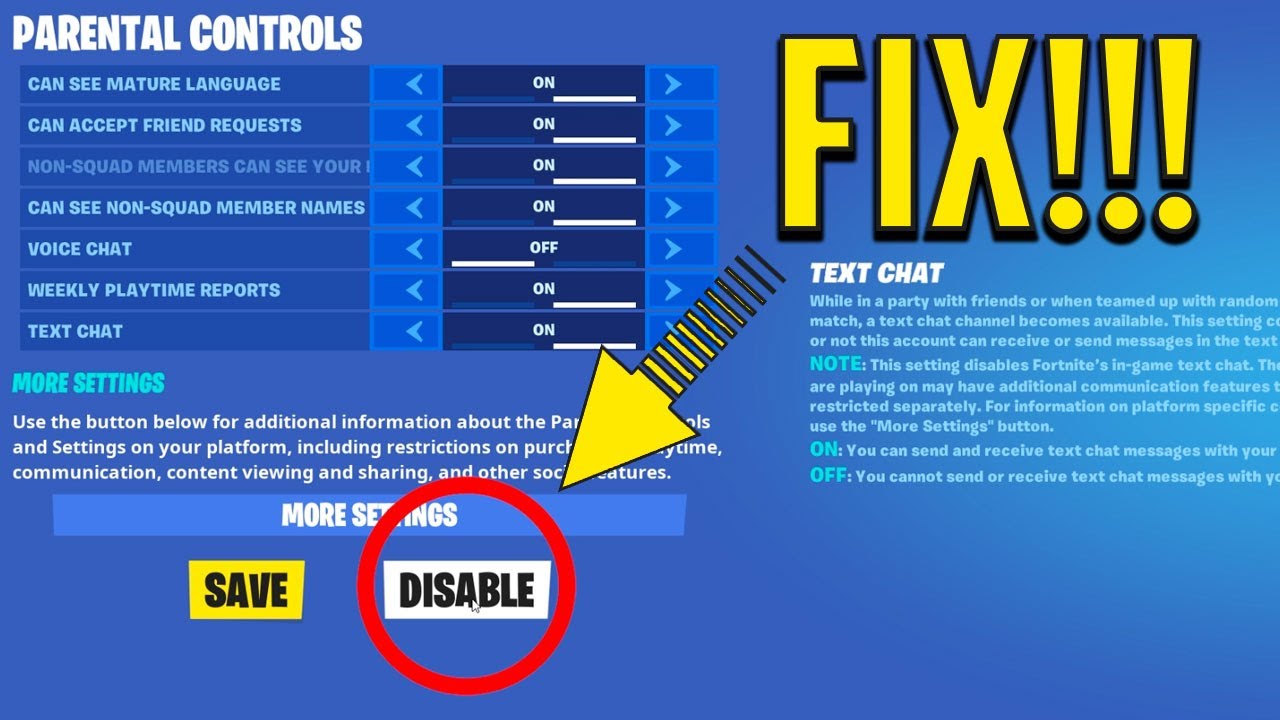
In today’s digital age, video games have become a central part of children’s lives. Among the most popular games is Fortnite, a free-to-play, cross-platform battle royale game developed by Epic Games. With over 400 million registered players and a massive global presence, Fortnite has captivated audiences of all ages, especially children and teenagers. While the game promotes creativity, strategic thinking, and social interaction, it also raises concerns for parents regarding screen time, in-game purchases, online interactions, and content exposure.
To address these concerns, Epic Games has implemented a robust set of parental controls. These tools empower parents to manage their children’s gaming experience, ensuring a safer and more balanced digital environment. However, navigating these controls can be overwhelming, especially for parents unfamiliar with gaming platforms or digital settings.
This comprehensive guide aims to demystify Fortnite parental controls. It provides step-by-step instructions, best practices, and expert advice to help parents take full advantage of the tools available. Whether you’re a tech-savvy parent or just beginning to explore digital safety, this article will equip you with everything you need to know about managing your child’s Fortnite experience.
Chapter 1: Understanding Fortnite and Why Parental Controls Are Necessary
Before diving into the technical aspects of parental controls, it’s essential to understand what Fortnite is and why parental oversight is crucial.
What Is Fortnite?
Fortnite is a multiplayer online game that combines elements of survival, exploration, building, and combat. The most popular mode, Fortnite Battle Royale, pits 100 players against each other on an island, where the last player or team standing wins. The game is known for its cartoonish graphics, vibrant visuals, and frequent updates that introduce new content, events, and collaborations with pop culture icons (e.g., Marvel, Star Wars, Travis Scott).
Other modes include Fortnite Creative, where players can design their own islands and games, and Fortnite Save the World, a cooperative PvE (player versus environment) mode (currently less popular than Battle Royale).
The game is free to download and play on multiple platforms, including:
- PlayStation 4/5
- Xbox One/Series X|S
- Nintendo Switch
- PC (Windows and macOS)
- iOS and Android (via cloud streaming)
Its accessibility and cross-platform functionality mean players can join friends regardless of the device they use.
Why Are Parental Controls Important?
While Fortnite is rated “Teen” by the ESRB (Entertainment Software Rating Board), indicating suitability for ages 13 and up, many younger children play the game. This raises several concerns:
- Excessive Screen Time: Fortnite is highly engaging, and children may lose track of time, leading to extended gameplay sessions that interfere with sleep, homework, and physical activity.
- In-Game Purchases: The game features an in-game currency called V-Bucks, used to buy cosmetic items such as skins, emotes, and gliders. While these items don’t affect gameplay, they can be tempting, especially for young players. Without restrictions, children may spend real money unintentionally.
- Online Communication Risks: Fortnite allows voice and text chat with other players. While this fosters teamwork and socialization, it also exposes children to potential risks such as cyberbullying, inappropriate language, or contact with strangers.
- Content Exposure: Although Fortnite is cartoonish and non-graphic, some in-game events or user-created content in Creative mode may not be age-appropriate. Additionally, live events or collaborations may include themes or imagery that parents may want to monitor.
- Addiction and Behavioral Impact: The game’s reward system and competitive nature can lead to compulsive play, affecting mood, attention, and academic performance.
Given these risks, parental controls are not just optional—they are essential tools for responsible digital parenting.
Chapter 2: Overview of Fortnite Parental Controls
Epic Games offers a suite of parental control features designed to help parents manage their child’s gaming experience. These controls are accessible through the Epic Games Account system, which serves as the central hub for all Fortnite-related settings.
Unlike console-specific parental controls (e.g., PlayStation Family Management or Xbox Family Settings), Fortnite’s parental controls are account-based, meaning they follow the player across all devices. This makes them particularly effective for families with children using multiple platforms.
Key Features of Fortnite Parental Controls
- Communication Restrictions: Control who your child can chat with—friends only, no one, or everyone.
- Content and Privacy Settings: Manage visibility of the player’s profile, friend requests, and access to user-generated content.
- Purchase Controls: Prevent unauthorized in-game purchases using V-Bucks.
- Play Time Limits: Set daily or weekly time limits for gameplay.
- Friend Request Management: Approve or deny friend requests sent to your child.
- Two-Factor Authentication (2FA): Enhance account security to prevent unauthorized access.
It’s important to note that while Epic Games provides these tools, they are not as comprehensive as third-party parental control software or built-in console restrictions. Therefore, combining Fortnite’s native controls with platform-level settings offers the best protection.
Chapter 3: Setting Up a Child’s Fortnite Account
Before applying parental controls, you must ensure your child has an Epic Games account. This account is required to play Fortnite on any platform.
Step 1: Create an Epic Games Account
- Go to www.epicgames.com.
- Click “Sign In” in the top-right corner.
- Select “Create New Account.”
- Enter the required information:
- Email address (use a parent-controlled email)
- Password (create a strong, unique password)
- Date of Birth (ensure it reflects the child’s actual age)
- Country and Language
⚠️ Important: If the account holder is under 13, U.S. law (COPPA – Children’s Online Privacy Protection Act) requires parental consent. Epic Games will prompt you to provide this consent during registration.
Step 2: Link the Account to a Gaming Platform
Once the Epic Games account is created, link it to the platform your child uses:
- PlayStation: Sign in to PlayStation Network, go to Account Settings > Account Management > Link Other Services > Epic Games.
- Xbox: Open the Xbox app or console, go to Profile & System > Settings > Account > Connected Accounts > Epic Games.
- Nintendo Switch: From the home screen, select the Fortnite icon, choose “Link Account,” and follow the prompts.
- PC/Mac: Download the Epic Games Launcher, sign in, and install Fortnite.
- Mobile: Download the game via the App Store (iOS) or Samsung Cloud Gaming (Android), then sign in with the Epic account.
Ensure the child always uses the same Epic account across devices to maintain consistent settings.
Chapter 4: Enabling Parental Controls on Epic Games
Now that the account is set up, it’s time to enable parental controls. These are managed through the Epic Games website.
Step 1: Access the Parental Controls Dashboard
- Go to https://www.epicgames.com and sign in with the parent’s email and password (not the child’s).
- Click on your profile icon in the top-right corner.
- Select “Account” from the dropdown menu.
- Navigate to the “Parental Controls” tab on the left sidebar.
If you don’t see this option, ensure you’re logged into the parent’s account and that the child’s account is properly linked.
Step 2: Add Your Child’s Account
- In the Parental Controls section, click “Add a Child.”
- Enter the email address associated with your child’s Epic Games account.
- Follow the verification steps (you may receive a confirmation email).
- Once added, the child’s account will appear in your parental dashboard.
You can manage multiple children’s accounts from a single parent profile.
Chapter 5: Configuring Communication Settings
One of the most critical aspects of Fortnite safety is managing online communication. Unrestricted chat can expose children to inappropriate language, scams, or predatory behavior.
Available Communication Options
Epic Games offers three communication settings:
- Everyone: Your child can voice and text chat with anyone in the game.
- Friends Only: Chat is limited to players on their friends list.
- No One: All voice and text chat is disabled.
Recommended Setting: “Friends Only”
We strongly recommend setting communication to “Friends Only.” This allows your child to interact with known players (e.g., classmates or real-life friends) while minimizing exposure to strangers.
How to Change Communication Settings
- In the Parental Controls dashboard, select your child’s account.
- Scroll to “Communication Settings.”
- Choose “Friends Only” from the dropdown menu.
- Click “Save.”
Note: This setting applies across all platforms. Even if your child plays on a friend’s console, the restriction remains.
Additional Tips
- Review the Friends List Regularly: Encourage your child to only add people they know in real life.
- Disable Voice Chat if Necessary: Some parents prefer to disable voice chat entirely. This can be done in the same menu.
- Educate Your Child: Teach them not to share personal information (name, school, address) in-game.
Chapter 6: Managing In-Game Purchases
One of the biggest concerns for parents is unexpected spending. Fortnite uses V-Bucks, a virtual currency, to purchase cosmetic items. These can range from $2 to $20 per item, and bundles can cost $50 or more.
Without restrictions, children may spend real money—especially if a payment method is saved to the account.
How to Prevent Unauthorized Purchases
Epic Games offers two layers of protection:
- Purchase Requirement Setting
- Two-Factor Authentication (2FA)
Option 1: Require Parental Approval for Purchases
This is the most effective method.
- In the Parental Controls dashboard, select your child’s account.
- Go to “Purchase Settings.”
- Choose “Require Parent Approval.”
- Click “Save.”
With this setting enabled:
- Your child cannot spend V-Bucks without your permission.
- When they attempt to make a purchase, you’ll receive an email notification.
- You must log in to your parent account and approve or deny the request.
This gives you full control over spending while still allowing your child to enjoy cosmetic customization.
Option 2: Disable Purchases Entirely
If you prefer to eliminate spending altogether:
- In Purchase Settings, select “No Purchases.”
- Save the setting.
This disables all in-game purchases. Your child won’t be able to buy anything, even with V-Bucks they’ve earned.
Option 3: Allow Purchases (Not Recommended)
Choosing “Allow Purchases” removes all restrictions. Only use this if you trust your child completely and have a budget in place.
Best Practices for Managing Spending
- Set a Monthly Allowance: If you allow purchases, consider giving your child a set amount of V-Bucks (via gift cards) each month.
- Use Gift Cards Instead of Credit Cards: Avoid linking credit/debit cards to the account. Instead, purchase V-Bucks via gift cards from retailers like Amazon or Walmart.
- Discuss Value and Budgeting: Use in-game purchases as a teaching moment about money management.
Chapter 7: Setting Play Time Limits
Excessive gameplay is a common issue. Fortnite’s fast-paced matches (15–20 minutes) can lead to “just one more game” syndrome, resulting in hours of play.
While Fortnite does not have built-in time tracking or automatic shutdown features, Epic Games allows parents to set play time limits through the parental controls dashboard.
How to Set Daily and Weekly Play Time Limits
- In the Parental Controls dashboard, select your child’s account.
- Navigate to “Play Time Settings.”
- Choose “Set Time Limit.”
- Enter the maximum daily or weekly play time (e.g., 1 hour per day or 5 hours per week).
- Click “Save.”
⚠️ Important Limitation: Unlike console parental controls, Fortnite’s time limits are advisory only. They do not automatically log the player out. Instead, they display warnings when the limit is approaching or exceeded.
For example:
- At 80% of the limit: “You’re nearing your daily play time.”
- At 100%: “You’ve reached your limit. Consider taking a break.”
Why Advisory Limits Aren’t Enough
Because the game doesn’t enforce these limits, motivated players can ignore them. Therefore, time limits should be combined with other strategies:
- Use Console or Device-Level Controls: Set hard time limits using PlayStation, Xbox, or mobile device settings.
- Establish House Rules: Agree on play schedules (e.g., 30 minutes after homework).
- Monitor Usage Manually: Check gameplay history through console or mobile screen time reports.
Alternative: Use Third-Party Parental Control Apps
Apps like Google Family Link, Apple Screen Time, Microsoft Family Safety, or Qustodio offer more robust time management features, including automatic app shutdowns.
For example:
- With Family Link, you can set daily time limits for the Fortnite app on Android.
- With Screen Time, you can restrict Fortnite after a certain duration on iOS.
These tools complement Epic’s controls and provide stronger enforcement.
Chapter 8: Managing Privacy and Content Settings
Protecting your child’s privacy is crucial in an online environment. Fortnite collects data and allows user-generated content, which can pose risks if not managed properly.
Key Privacy Settings
In the Parental Controls dashboard, under “Privacy Settings,” you can configure:
- Profile Visibility: Who can view your child’s profile (Public, Friends Only, Private).
- Friend Requests: Who can send friend requests (Everyone, Friends of Friends, No One).
- Content Rating: Filter user-generated islands in Creative mode based on maturity level.
Recommended Settings
- Profile Visibility: Set to “Friends Only” or “Private.”
- Friend Requests: Set to “Friends of Friends” or “No One” (you approve all requests).
- Content Rating: Choose “Everyone” or “Everyone 10+” to block mature content.
How to Adjust Privacy Settings
- Go to the Parental Controls dashboard.
- Select your child’s account.
- Navigate to “Privacy Settings.”
- Adjust each option according to your preferences.
- Click “Save.”
Creative Mode Safety
Fortnite Creative allows players to build custom maps and games. While this fosters creativity, some islands may contain inappropriate themes, language, or mechanics.
By setting the Content Rating filter, you reduce the likelihood of your child encountering unsuitable content. However, no filter is 100% effective. Regular conversations about online behavior are still essential.
Chapter 9: Managing Friend Requests and Social Interactions
The friends list is a gateway to social interaction in Fortnite. While playing with friends can be fun, it also opens the door to unknown players.
How to Manage Friend Requests
Epic Games allows parents to:
- Review and Approve Friend Requests: You’ll receive notifications when someone sends a request to your child.
- Block Specific Users: Prevent unwanted players from contacting your child.
- Remove Friends: Delete existing friends if necessary.
Steps to Approve Friend Requests
- When a friend request is sent, you’ll receive an email notification.
- Log in to your parent account at epicgames.com.
- Go to Parental Controls > Your Child’s Account > “Friend Requests.”
- View the sender’s username and profile.
- Choose “Approve” or “Deny.”
Tip: Only approve requests from people your child knows in real life.
Educating Your Child About Online Safety
- Never accept requests from strangers.
- Avoid playing with people who use offensive language.
- Report and block suspicious users.
Fortnite has a built-in reporting tool:
- Press the Menu button during gameplay.
- Select “Players” > Choose a player > “Report.”
Teach your child to use this feature.
Chapter 10: Enhancing Security with Two-Factor Authentication (2FA)
Account security is a critical but often overlooked aspect of parental controls. Without 2FA, your child’s account could be hacked, leading to stolen V-Bucks, inappropriate purchases, or impersonation.
What Is Two-Factor Authentication?
2FA adds an extra layer of security by requiring a second form of verification (e.g., a code from an app or text message) when logging in.
Why Enable 2FA?
- Prevents unauthorized access.
- Protects saved payment methods.
- Reduces the risk of account theft.
How to Enable 2FA on a Child’s Account
- Log in to the child’s Epic Games account.
- Go to Account Settings > Password & Security.
- Under “Two-Factor Authentication,” click “Enable.”
- Choose a method:
- Authenticator App (Recommended): Use Google Authenticator, Microsoft Authenticator, or Authy.
- Email Code: Less secure, as email accounts can be compromised.
- Follow the setup instructions.
- Save the recovery codes in a secure place.
Important: As a parent, you should manage the 2FA method (e.g., keep the authenticator app on your phone) to ensure you can recover the account if needed.
Chapter 11: Using Console-Specific Parental Controls
While Epic Games provides account-level controls, platform-specific settings offer additional layers of protection.
PlayStation Parental Controls
- Go to Settings > Parental Controls/Family Management.
- Create a sub-account for your child.
- Set restrictions on:
- Play time
- Online communication
- Purchases
- Game ratings
Link the sub-account to the Epic Games account for full integration.
Xbox Family Settings
- Go to account.microsoft.com/family.
- Add your child and set up a family group.
- Configure:
- Screen time limits
- Game restrictions
- Spending limits
- Privacy settings
Xbox allows you to set strict content filters and block specific games.
Nintendo Switch Parental Controls
- Download the Nintendo Switch Parental Controls app.
- Link it to your child’s Switch.
- Set daily play limits, bedtime schedules, and app restrictions.
- Receive activity reports.
The app provides real-time monitoring and remote shutdown capabilities.
Mobile Device Controls
- iOS (Screen Time): Set app limits, downtime, and content restrictions.
- Android (Family Link): Manage app usage, set timers, and lock devices remotely.
These tools are especially useful for preventing late-night gameplay.
Chapter 12: Monitoring and Reviewing Activity
Regular monitoring helps ensure your child is using Fortnite responsibly.
What to Monitor
- Play Time: How many hours per day/week?
- Spending: Are purchases being made? Are they appropriate?
- Friends List: Who are they playing with?
- Communication: Are they chatting with strangers?
How to Review Activity
- Console Activity Logs: PlayStation, Xbox, and Switch provide detailed usage reports.
- Email Notifications: Epic Games sends alerts for purchase requests and friend requests.
- Direct Conversation: Talk to your child weekly about their gaming experience.
Signs of Problematic Gaming
- Irritability when not playing
- Declining school performance
- Neglecting chores or hygiene
- Sneaking playtime
If you observe these signs, consider tightening restrictions or seeking professional guidance.
Chapter 13: Teaching Digital Responsibility
Parental controls are tools, not substitutes for parenting. The goal is to raise digitally responsible children.
Key Lessons to Teach
- Balance: Gaming is fun, but real-life activities matter more.
- Respect: Be kind in chat; don’t bully or harass others.
- Privacy: Never share personal information online.
- Critical Thinking: Not everything on the internet is true or safe.
- Financial Literacy: Understand the value of money, even virtual currency.
Involve Your Child in Setting Rules
Instead of imposing restrictions, involve your child in creating a “Family Media Agreement.” This document outlines:
- Allowed play times
- Spending limits
- Approved friends
- Consequences for breaking rules
When children help set the rules, they’re more likely to follow them.
Chapter 14: Troubleshooting Common Issues
Issue 1: Can’t Access Parental Controls
- Ensure you’re logged into the parent’s account, not the child’s.
- Verify that the child’s account is linked.
- Clear browser cache or try a different browser.
Issue 2: Purchase Requests Not Coming Through
- Check spam/junk folders.
- Ensure the correct email is listed in account settings.
- Resend the request from the child’s end.
Issue 3: Time Limits Not Enforced
Remember: Fortnite’s time limits are advisory. Use device-level controls for enforcement.
Issue 4: Child Can’t Add Friends
If friend requests are set to “No One,” you must approve each request manually.
Chapter 15: Staying Updated and Informed
Fortnite evolves rapidly. New seasons, events, and features are added regularly. Stay informed by:
- Subscribing to Epic Games’ newsletter.
- Following trusted parenting and tech blogs.
- Joining online parent communities.
Epic Games also provides a Parent Guide on its website with updated safety tips.
Conclusion
Fortnite is more than just a game—it’s a digital social space where children learn, play, and connect. As parents, our role is not to eliminate gaming but to guide it responsibly. By using Fortnite parental controls effectively, we can protect our children from risks while allowing them to enjoy the benefits of digital play.
This guide has walked you through every aspect of Fortnite parental controls—from account setup to communication restrictions, purchase management, time limits, and beyond. Remember, technology is a tool, but parenting is the foundation. Combine these digital tools with open communication, clear rules, and ongoing education to create a safe and balanced gaming environment.
The goal is not perfection, but progress. Start with one setting—like enabling purchase approval—and build from there. With patience and consistency, you can help your child navigate the world of Fortnite safely and wisely.
Appendix: Quick Reference Checklist
✅ Create a parent-controlled Epic Games account
✅ Set up your child’s account with accurate age and email
✅ Link the account to gaming platforms
✅ Enable Parental Controls on the Epic website
✅ Set communication to “Friends Only”
✅ Require parental approval for purchases
✅ Set advisory play time limits
✅ Adjust privacy settings (profile, friend requests, content)
✅ Enable Two-Factor Authentication
✅ Use console or device-level controls for enforcement
✅ Monitor activity and review regularly
✅ Talk to your child about online safety and balance
Final Thoughts
In a world where digital experiences are inevitable, tools like Fortnite parental controls are invaluable. They empower parents to take an active role in their child’s online life. But more than any setting or restriction, what matters most is connection—spending time together, understanding your child’s interests, and guiding them with love and wisdom.