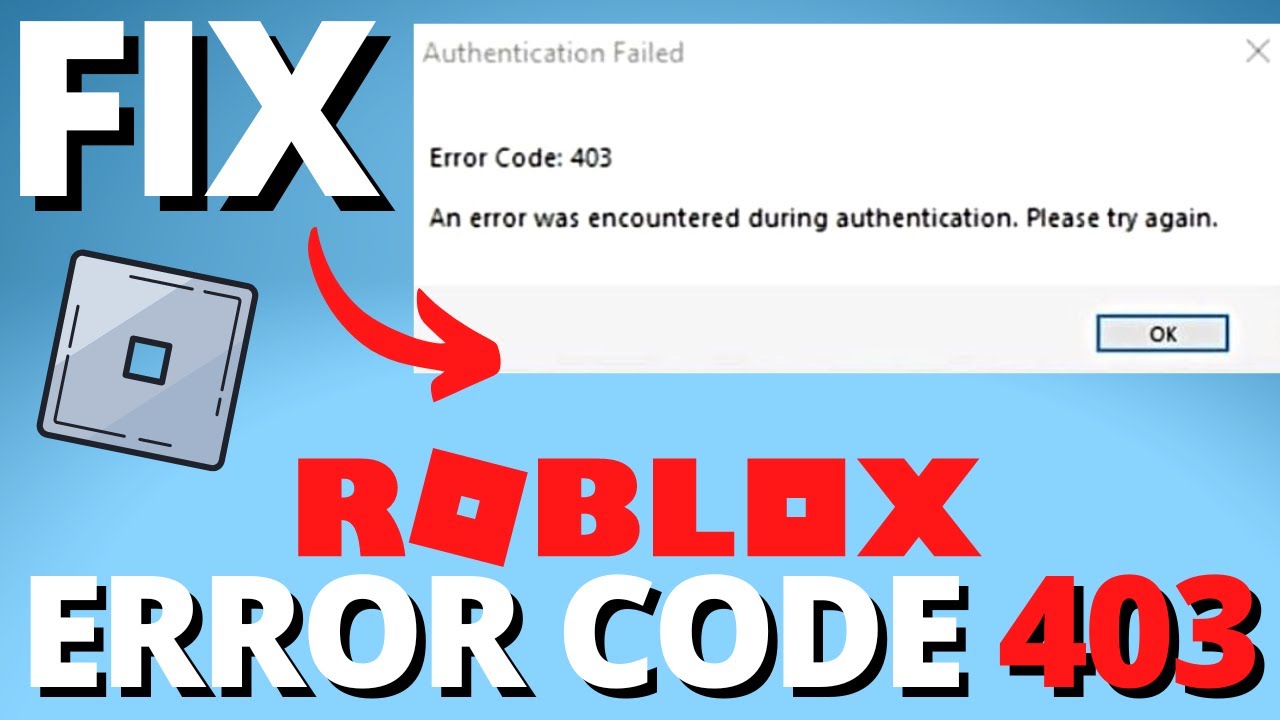
If you’ve ever been mid-game on Roblox, chasing that last badge or about to join your friends in a private server, only to get slapped with a blunt “Error Code 403” message, you know exactly how frustrating it is. One second you’re loading into your favorite experience, the next you’re staring at a screen that basically tells you “access denied” without explaining why.
The good news? Error 403 on Roblox is almost always fixable, and in most cases you don’t need any technical expertise to solve it. This guide walks you through everything you need to know: what the error actually means, why it happens, and every proven fix, from the simplest one-click solutions to the more advanced troubleshooting steps that resolve stubborn cases.
Let’s get you back into your game.
What Is Roblox Error Code 403?
Error 403 is a standard HTTP status code that means “Forbidden.” In plain English, it means the server understood your request but is refusing to let you access whatever you were trying to reach. It’s not the same as a 404 (page not found) or a 500 (server error) — 403 specifically means the server knows what you’re asking for, but something is blocking you from getting it.
On Roblox, this typically shows up when you’re trying to:
- Join a specific game or experience
- Load the Roblox website or a particular page on it
- Access your account or account settings
- Use the in-game chat or social features
- Load avatar items, catalog pages, or the marketplace
Because Roblox runs on a mix of web servers, game servers, and third-party network infrastructure (like content delivery networks and firewalls), a 403 error can originate from several different places. That’s why there’s no single universal fix — but there is a logical order of troubleshooting steps that resolves the vast majority of cases.
Common Causes of Roblox Error 403
Before jumping into fixes, it helps to understand what’s actually causing the block. Here are the most frequent culprits.
1. Network or Firewall Restrictions
Many networks — especially school, work, or public Wi-Fi networks — use firewalls that block or filter certain websites and services. Roblox’s servers can get caught in these filters, especially if the network administrator has restricted gaming sites or specific ports that Roblox relies on.
2. VPN or Proxy Interference
If you’re using a VPN or proxy, Roblox’s servers may flag your connection as suspicious or route you through a region where the content or service isn’t available. This is one of the single most common causes of Error 403 for players using VPNs, even reputable ones.
3. Browser Extensions and Ad Blockers
Ad blockers, privacy extensions, and script blockers can accidentally interfere with Roblox’s website scripts, cutting off requests that the site needs to complete and triggering a 403 response.
4. Corrupted Cache or Cookies
Your browser or the Roblox app stores cached data and cookies to speed up loading times. When this data becomes outdated or corrupted, it can send malformed requests to Roblox’s servers, which the servers then reject.
5. Account or IP-Level Restrictions
In some cases, Roblox may temporarily restrict access from an IP address or account due to unusual activity, suspected violations of the Terms of Service, or an automated security flag (even if you haven’t done anything wrong). This is less common but does happen.
6. Outdated Roblox App or Browser
Running an old version of the Roblox client, or an outdated browser, can cause compatibility issues with the current server requirements, sometimes resulting in a 403 response.
7. Regional or ISP-Level Blocks
Some Internet Service Providers (ISPs) or countries impose restrictions on certain online services. If Roblox (or a specific game within it) is blocked at the ISP or regional level, you may see a 403 error even though your device and account are working fine.
8. Server-Side Issues on Roblox’s End
Occasionally, the problem isn’t you at all — Roblox’s servers may be experiencing an outage, undergoing maintenance, or dealing with a bug that mistakenly triggers 403 errors for many users at once.
Before You Start: Quick Checks
Before diving into the deeper fixes, run through this 60-second checklist. It resolves a surprising number of cases on its own.
- Check Roblox’s server status. Visit a service status site or Roblox’s official social channels to see if there’s a known outage. If Roblox itself is down, no amount of troubleshooting on your end will help — you’ll just need to wait.
- Restart your device. It sounds too simple to work, but a fresh restart clears temporary network glitches and memory issues that could be causing the error.
- Try a different device or network. If Error 403 shows up on your phone but not your laptop, or on your home Wi-Fi but not mobile data, that tells you a lot about where the problem lives.
If the quick checks don’t solve it, move on to the step-by-step fixes below.
Step-by-Step Fixes for Roblox Error 403
Step 1: Disable Your VPN or Proxy
If you’re using a VPN or proxy service, turn it off completely and try loading Roblox again.
- Open your VPN app.
- Disconnect or turn off the VPN connection.
- Close and reopen your browser or the Roblox app.
- Try accessing Roblox again.
If Roblox loads fine without the VPN, you’ve found your culprit. Some VPNs offer server locations that work better with Roblox than others, so if you need the VPN for other reasons, try switching to a different server location rather than disabling it entirely.
Step 2: Clear Your Browser Cache and Cookies
Corrupted cache files are a frequent cause of 403 errors on the Roblox website.
On Google Chrome:
- Click the three-dot menu in the top-right corner.
- Go to Settings > Privacy and Security > Clear Browsing Data.
- Select “Cookies and other site data” and “Cached images and files.”
- Choose “All time” as the time range.
- Click Clear Data.
- Restart the browser and reload Roblox.
On Firefox:
- Click the menu button and select Settings.
- Navigate to Privacy & Security.
- Under “Cookies and Site Data,” click Clear Data.
- Restart Firefox and try again.
On Safari:
- Go to Safari > Preferences > Privacy.
- Click Manage Website Data.
- Search for “roblox” and remove all related entries.
- Restart Safari.
After clearing your cache, log back into Roblox and see if the error persists.
Step 3: Disable Browser Extensions
Ad blockers and privacy tools can silently block scripts that Roblox needs to function correctly.
- Open your browser’s extensions or add-ons menu.
- Disable ad blockers, script blockers, and privacy-focused extensions one at a time.
- Reload Roblox after disabling each one to identify the culprit.
- Once you find the extension causing the issue, either disable it permanently while using Roblox or add Roblox as an exception in the extension’s settings.
Most ad blockers let you whitelist specific sites, which is a good middle ground if you don’t want to disable the extension entirely.
Step 4: Try a Different Browser or the Roblox App
If clearing your cache and disabling extensions doesn’t help, test whether the issue is browser-specific.
- If you’re using Chrome, try Firefox, Edge, or Safari instead.
- If you’re using the Roblox website, try switching to the standalone Roblox app instead (or vice versa).
- Make sure whichever option you choose is fully updated to the latest version.
This step helps you isolate whether the issue is with your specific browser configuration or something broader on your network or account.
Step 5: Update Roblox and Your Browser
Outdated software is a common but often overlooked cause of connectivity errors.
To update the Roblox app:
- Open your device’s app store (Google Play, Apple App Store, or Microsoft Store).
- Search for Roblox.
- If an update is available, install it.
- Restart the app.
To update your browser:
- Go to your browser’s settings menu.
- Look for an “About” or “Help” section — most browsers have an “About [Browser Name]” page that automatically checks for updates.
- Install any pending updates and restart the browser.
Step 6: Check Your Firewall and Antivirus Settings
Security software on your computer or router can sometimes block Roblox’s connection requests, misidentifying them as a threat.
- Open your antivirus or firewall software.
- Look for a list of blocked applications or websites.
- If Roblox or your browser appears on that list, remove the restriction or add an exception for Roblox.
- Restart your computer and try loading Roblox again.
If you’re on a school, work, or public network, keep in mind that these firewall rules might be controlled by a network administrator rather than your own settings — in that case, see the network-specific fix below.
Step 7: Switch Networks or Contact Your Network Administrator
If you suspect your network itself is blocking Roblox (common on school or office Wi-Fi):
- Try connecting to a different network, such as mobile data or a home Wi-Fi connection, to see if the error disappears.
- If it does, the original network is likely restricting access to Roblox or gaming-related traffic.
- If you need Roblox access on that specific network (for a school project, for example), reach out to the network administrator to request an exception.
Public Wi-Fi networks in libraries, cafes, and airports can also be restrictive, so this is worth testing whenever you’re away from your usual internet connection.
Step 8: Flush Your DNS and Reset Your Network Settings
Sometimes the issue lies in outdated DNS records stored on your device, which can cause your device to resolve Roblox’s servers incorrectly.
On Windows:
- Open Command Prompt as an administrator.
- Type
ipconfig /flushdnsand press Enter. - Restart your computer.
On Mac:
- Open Terminal.
- Type
sudo dscacheutil -flushcache; sudo killall -HUP mDNSResponderand press Enter. - Enter your password if prompted.
- Restart your computer.
On mobile devices:
- Turn on Airplane Mode for 30 seconds, then turn it off again. This forces your device to reconnect and refresh its network settings.
- Alternatively, restart your router if you’re on Wi-Fi.
Step 9: Check for Account-Specific Restrictions
If none of the network or device-based fixes work, the issue might be tied specifically to your Roblox account.
- Try logging into Roblox from a completely different device and network.
- If the error follows your account across devices and networks, this suggests an account-level restriction rather than a technical glitch.
- Check your email (including spam folder) for any messages from Roblox about account restrictions, moderation actions, or security flags.
- If you find a notice, follow the instructions provided or submit an appeal through Roblox’s official support channels.
Keep in mind that account restrictions related to Terms of Service violations typically come with clear notifications, so if you haven’t received one, this is less likely to be the cause.
Step 10: Contact Roblox Support
If you’ve worked through every fix above and Error 403 is still popping up, it’s time to reach out to Roblox directly.
- Go to the official Roblox support page.
- Look for the option to submit a help request or ticket.
- Provide as much detail as possible: when the error started, which device and browser you’re using, what troubleshooting steps you’ve already tried, and a screenshot of the error if possible.
- Be patient — support response times vary, but detailed reports get resolved faster than vague ones.
Roblox’s support team can check server-side logs and account status information that you don’t have access to, which makes this the right move for persistent, unresolved cases.
Fixes Specific to Mobile Devices
If you’re experiencing Error 403 on the Roblox mobile app (iOS or Android), a few additional steps can help:
- Reinstall the app. Uninstall Roblox completely, restart your device, then reinstall the latest version from the app store.
- Check app permissions. Make sure Roblox has permission to access your network and storage in your device’s settings.
- Free up storage space. Low storage can sometimes interfere with how apps cache and load data, indirectly contributing to loading errors.
- Switch between Wi-Fi and mobile data. This helps determine whether the issue is specific to one type of connection.
Fixes Specific to Roblox Studio
Developers working in Roblox Studio sometimes encounter Error 403 when trying to publish games, upload assets, or access certain API-driven features. If this applies to you:
- Verify your account permissions. Make sure your account has the correct permissions for the group or game you’re trying to modify, especially if you’re working within a team or group-owned experience.
- Check API access settings. Some Studio features rely on external API access, which may need to be explicitly enabled in your account or game settings.
- Re-authenticate your session. Log out of Roblox Studio completely and log back in to refresh your authentication tokens.
- Check for ongoing Roblox API outages. Studio-specific errors are sometimes tied to backend issues rather than anything on your end.
Why Prevention Matters: Avoiding Error 403 in the Future
Once you’ve resolved the immediate issue, a few good habits can reduce the chances of running into Error 403 again:
- Keep your browser and Roblox app updated so you’re always running compatible, secure versions.
- Avoid unnecessary VPN use while playing Roblox unless you specifically need it, and choose VPN servers known to work well with gaming platforms.
- Periodically clear your browser cache, especially if you use Roblox frequently across multiple sessions.
- Whitelist Roblox in your antivirus and ad blocker settings from the start, rather than waiting for an error to force the issue.
- Bookmark Roblox’s official status page so you can quickly check for outages before assuming the problem is on your end.
Quick Reference: Troubleshooting Checklist
If you want a fast, no-frills version to work through, here’s the order that tends to resolve issues most efficiently:
- Check Roblox server status
- Restart your device
- Disable VPN or proxy
- Clear browser cache and cookies
- Disable browser extensions
- Try a different browser or the Roblox app
- Update Roblox and your browser
- Check firewall and antivirus settings
- Switch networks
- Flush DNS / reset network settings
- Check for account-specific restrictions
- Contact Roblox Support
Working through this list in order, rather than jumping around, will save you time and help you (or Roblox Support, if it comes to that) pinpoint exactly where the problem is coming from.
Final Thoughts
Error 403 is one of those errors that feels alarming mostly because it’s vague — “Forbidden” doesn’t tell you much on its own. But as you’ve seen, the actual causes are usually pretty ordinary: a VPN interfering with your connection, a stubborn browser cache, an overzealous firewall, or a network that’s blocking gaming traffic. In the rare cases where it’s something more serious, like an account-level restriction, Roblox’s support team is equipped to help you sort it out.
The key is to work through the fixes methodically rather than guessing randomly. Start simple — restart your device, check server status, disable your VPN — and work your way toward the more technical solutions only if needed. For most players, the fix takes just a few minutes.
Hopefully this guide gets you back into your favorite Roblox experience without any more interruptions. Good luck, and happy gaming.

Alex Smith
I’m a dedicated gamer who loves exploring games, mastering gameplay mechanics, and sharing gaming knowledge. I stay updated with the latest releases, tips, and strategies to improve performance and enjoyment. Gaming is my passion and my skill.