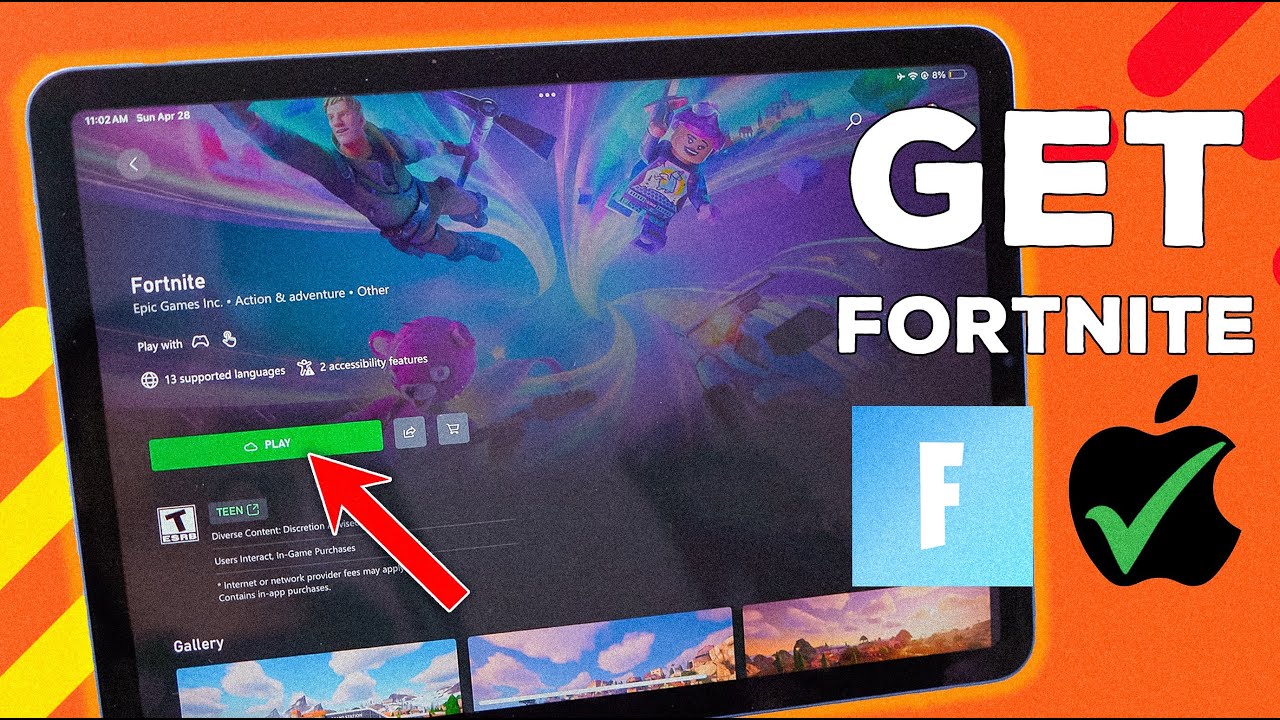
If you’ve been out of the loop for the past couple of years, here’s a sentence that might surprise you: Fortnite is back on the iPad App Store. Not through a workaround. Not through some clunky browser hack. It’s back, downloadable the normal way, for most of the world.
For anyone who lived through the drama — the sudden removal in 2020, the years of lawsuits, the awkward era of cloud streaming and sideloaded app stores — this feels like the end of a very long saga. And if you’re new to all this and just want to know how to get the game running on your iPad today, you’re in the right place too.
This guide walks through exactly where things stand right now, how to actually install Fortnite on your iPad depending on where you live, what to do if the direct download isn’t available to you yet, and what to expect once you’re back in the lobby.
A Quick Recap: How Fortnite Disappeared From iPad in the First Place
To appreciate why this comeback matters, it helps to remember why Fortnite left in the first place.
Back in 2020, Epic Games deliberately triggered a fight with Apple by adding its own payment system to Fortnite on iOS, sidestepping the standard 30% cut Apple takes through the App Store. Apple responded by pulling Fortnite from the App Store entirely. Epic, having planned for exactly this outcome, immediately filed a lawsuit, and released a satirical video mocking Apple’s famous “1984” commercial.
What followed was years of legal wrangling across multiple countries. Courts weighed in on app store monopolies, anti-steering rules, and whether Apple’s control over iOS distribution was fair to developers. Along the way, iPad and iPhone users who wanted to play Fortnite had to get creative — using cloud gaming services like Xbox Cloud Gaming or GeForce NOW to stream the game instead of installing it locally, since streaming apps didn’t fall under the same restrictions.
That workaround was functional, but it was never the real thing. Cloud streaming meant dealing with input lag, needing a rock-solid internet connection, and losing that instant, no-fuss feeling of just tapping an icon and dropping into a match.
What Changed: Why Fortnite Is Back
The short version is that regulatory pressure and court rulings gradually forced Apple to loosen its grip on iOS app distribution, first in the European Union, then in other regions, and now on a much broader global scale.
Fortnite made its first real return through the Epic Games Store, which Apple was compelled to allow onto iPhones and iPads in the EU as a separate app marketplace. Players in the EU could install the Epic Games Store app, and from there, download Fortnite. Japan followed with similar allowances, though initially limited to iPhone.
Then, as court proceedings between Epic and Apple reached their final stages, Apple restored Fortnite as a standalone app directly on the regular App Store — not just through an alternative marketplace, but through the same App Store you’d use to download any other app. This rollout has been global, covering the vast majority of the world’s iPhone and iPad users, with Australia currently being the one notable exception due to a separate, still-pending court ruling in that country.
Epic’s Tim Sweeney addressed the return publicly, framing it as long overdue and pointing to what he described as years of jurisdiction-by-jurisdiction fragmentation from Apple. Whatever your take on the legal back-and-forth, the practical outcome for players is simple: Fortnite is downloadable again, the normal way, for most people.
Where You Stand Right Now: Three Possible Situations
Because the rollout has happened in stages and varies by region, your experience getting Fortnite on iPad depends on where you live. Broadly, you’ll fall into one of three groups.
Group 1: You’re in the US, EU, Japan, or Most Other Supported Regions
If you’re in one of the regions where Fortnite has been reinstated as a standalone app, this is the easiest scenario by far. You can open the App Store directly on your iPad and download Fortnite exactly like you would any other app — no separate marketplace, no extra steps, no sideloading.
Group 2: You’re in the EU or Japan and Prefer the Epic Games Store Route
Even though the standalone App Store listing now covers most regions, EU (and iPhone users in Japan) also have the option of installing Fortnite through the Epic Games Store app instead, or through AltStore PAL, a third-party marketplace. This matters if you want access to Epic’s own storefront for other games too, or if for some reason the standalone listing isn’t showing up for you yet.
Group 3: You’re in Australia or a Region Without Direct Support
If you’re in Australia, the standalone App Store listing currently isn’t available due to a pending court decision specific to that country. If you fall into this group, or into any other region where neither the App Store listing nor the Epic Games Store is available, cloud gaming remains your most reliable path in.
Now let’s walk through each method in detail.
Method 1: Downloading Fortnite Directly From the App Store
This is the method most iPad users will use, and it’s about as simple as installing any other app.
Step 1: Check your iPad’s compatibility. Fortnite requires iPadOS 17.0 or later. It also needs a reasonably capable device — officially supported iPads include the iPad Pro 10.5″ and newer, iPad Air 4th generation and newer, iPad 10th generation and newer, and iPad Mini 6th generation and newer. If your iPad predates these models, the App Store may not show Fortnite as available for download, or performance may be a problem even if it installs.
Step 2: Update iPadOS if needed. Go to Settings > General > Software Update, and install any pending updates before proceeding. This avoids compatibility hiccups.
Step 3: Open the App Store and search for Fortnite. Tap the App Store icon, use the search tab, and type “Fortnite.” You’re looking for the official listing published by Epic Games, Inc. — it will show the familiar Fortnite icon and list Epic Games as the developer.
Step 4: Tap Get, then confirm the download. Depending on your device settings, you may need to authenticate with Face ID, Touch ID, or your Apple ID password to start the download.
Step 5: Wait for the install, then open the app. Fortnite is a large game, easily several gigabytes, so this step depends heavily on your internet speed. Connecting to Wi-Fi rather than cellular data is strongly recommended, both for speed and to avoid burning through your data plan.
Step 6: Sign in or create your Epic Games account. Once the app opens, you’ll be prompted to log in with an existing Epic account or create a new one. If you played Fortnite on iPad before the 2020 removal, logging in with your old account should restore your skins, V-Bucks, and Battle Pass progress, assuming you haven’t lost access to that account.
Step 7: Download additional content packs. Modern Fortnite is modular — after the initial install, the game will prompt you to download specific content packs depending on which modes you want to play (Battle Royale, Zero Build, LEGO Fortnite, Fortnite Festival, Rocket Racing, and so on). You don’t need to download everything at once; just grab the mode you want to play first and add others later.
Method 2: Installing Fortnite Through the Epic Games Store (EU and Japan)
If you’re in the EU, or you’re an iPhone user in Japan, and you’d rather go through Epic’s own storefront, here’s how that works.
Step 1: Visit epicgames.com in Safari on your iPad. This has to be done through a web browser rather than the App Store, since the Epic Games Store isn’t distributed by Apple.
Step 2: Tap Install in the top-right corner. A prompt will appear referring to “Marketplace Installation.” Tap OK to proceed.
Step 3: Allow the marketplace in Settings. Open the Settings app, find the option to allow the marketplace from Epic Games, and tap Allow to confirm. This is Apple’s built-in permission system for alternative app marketplaces, introduced specifically to comply with EU digital market regulations.
Step 4: Return to Safari and finish the install. Go back to your browser, tap Install again, then choose Install App Marketplace, and confirm. The Epic Games Store icon should now appear on your home screen.
Step 5: Open the Epic Games Store app and select Fortnite. From here it works much like any other app store — tap Get, and the download will begin.
Alternatively, EU and Japan users can use AltStore PAL, a separate third-party marketplace, by downloading it from AltStore.io and following a similar installation and permission process. This is a good backup option if you run into issues with Epic’s own store.
Method 3: Cloud Gaming (For Regions Without Direct Access)
If you’re in Australia or another region where neither the App Store listing nor the Epic Games Store is available to you, cloud gaming is still a completely viable way to play. Instead of installing the game locally, you stream it from remote servers, similar to how you’d stream a video.
Popular cloud gaming options for Fortnite include:
- Xbox Cloud Gaming, available to Xbox Game Pass Ultimate subscribers
- GeForce NOW, Nvidia’s cloud gaming service with both free and paid tiers
- Amazon Luna, Amazon’s cloud gaming platform
How to set it up:
Step 1: Choose a cloud gaming service and create an account. Each has different pricing and access models, so it’s worth checking which one fits your budget and whether you already have a related subscription, like Xbox Game Pass.
Step 2: Open Safari (or another supported browser) on your iPad. Cloud gaming services run through the browser on iPad rather than through a dedicated app, since Apple’s older App Store rules restricted cloud gaming apps specifically — though this has loosened over time in various markets.
Step 3: Navigate to the cloud gaming service’s website and sign in. From there, search for and select Fortnite from the available game library.
Step 4: Add a home screen shortcut for convenience. Most iPads let you save a website as an icon on your home screen, so you can launch straight into the cloud gaming session without manually navigating to the site each time.
Step 5: Connect a controller for the best experience. While cloud gaming works fine with on-screen touch controls, many players find a physical controller makes a real difference, especially in fast-paced Battle Royale matches. Bluetooth controllers from Xbox and PlayStation both pair easily with iPad and are widely supported across cloud gaming platforms.
A note on connection quality: Cloud gaming is only as good as your internet connection. A stable, high-speed Wi-Fi network is strongly recommended over cellular data, since latency spikes or dropped frames can be the difference between winning a fight and getting eliminated.
What’s New in Fortnite Since the iPad Comeback
If you haven’t played in years, or if you’re picking up Fortnite for the first time, the game today looks quite different from what you might remember. Here’s a snapshot of what’s changed.
More Ways to Play Than Just Battle Royale
Fortnite has expanded well beyond the original last-player-standing format. Alongside classic Battle Royale and the no-building Zero Build mode, you’ll also find:
- Blitz, a faster-paced take on Battle Royale with shorter matches
- OG, which brings back earlier, nostalgic versions of the map
- Reload, a compact, fast-action mode
- LEGO Fortnite, a survival-crafting mode built around LEGO-style building
- Fortnite Festival, a rhythm game mode where you perform as characters on stage
- Rocket Racing, a racing mode using Rocket League-style cars
There’s also a huge library of player-created islands, ranging from tycoon games to deathruns to zombie survival maps, all accessible from within the same app.
A Welcome-Back Reward
To mark the return to the App Store, Epic is offering players a free character skin called Yeddy for iOS users who download the game, jump into matches, and hit certain leveling milestones. It’s the same reward previously offered to returning Android players, and it’s a nice, no-cost incentive if you’re rebuilding your account from scratch.
Ongoing Collaborations and Live Events
Fortnite has leaned even further into pop culture crossovers and limited-time in-game events since its iPad absence, tying in with movies, music artists, and other franchises. If you’re returning after a long break, expect the map, item pool, and cosmetic shop to look quite different from what you last saw — it’s worth spending a little time exploring before jumping into competitive matches.
Troubleshooting: Common Issues When Getting Fortnite Running Again
Even with the return of official App Store access, a few hiccups can pop up. Here’s how to handle the most common ones.
“Fortnite isn’t showing up in my App Store search.” Double-check your Apple ID’s country/region setting under Settings > [Your Name] > Media & Purchases > View Account, since App Store availability is tied to your account region, not just your physical location. If you’re in a supported region and it’s still not appearing, try updating iPadOS and restarting the App Store app.
“The download is stuck or extremely slow.” This is almost always related to network conditions rather than the app itself. Switch to a stronger Wi-Fi connection if possible, and avoid downloading during peak network congestion hours if you’re on a shared connection.
“My old account and progress aren’t showing up.” Make sure you’re logging in with the same method you originally used — whether that was an Epic account, or a linked account through PlayStation, Xbox, Nintendo, or a social platform. Account linking issues are one of the most common reasons returning players think they’ve lost progress when it’s actually just tied to a different login method.
“The game runs poorly on my iPad.” If your iPad is on the older end of the supported device list, you may need to lower in-game graphics settings under the game’s video options. Closing other background apps before launching Fortnite can also help free up memory.
“I’m in the EU and the Epic Games Store install prompt isn’t working.” Make sure you’ve enabled the marketplace permission correctly in Settings, since this is a manual opt-in step Apple requires. If it still fails, try the AltStore PAL route as an alternative, or check whether the standalone App Store listing is now available to you directly, which would skip this process entirely.
A Few Tips for Getting the Most Out of Fortnite on iPad
Once you’re up and running, a handful of small adjustments can noticeably improve your experience.
Use a controller if you’re serious about competitive play. Touch controls have improved over the years, but a paired controller still offers more precise aim and faster reaction times, particularly in build-heavy matches.
Adjust sensitivity settings early. Fortnite’s touch and controller sensitivity settings are deep and customizable. Spending ten minutes in the settings menu before your first real match will save you a lot of frustration later.
Keep the app updated. Fortnite receives frequent updates, sometimes weekly, tied to new seasons, events, and balance changes. Turning on automatic app updates in your iPad’s settings avoids surprises when you go to log in.
Manage storage carefully. Between the base install and additional content packs for different modes, Fortnite can take up a significant chunk of storage on smaller-capacity iPads. Only download the modes you actually plan to play, and periodically check Settings > General > iPad Storage if space gets tight.
Join a Discord or community for your platform. Because Fortnite’s return to iPad has been staggered by region, communities have formed around sharing troubleshooting tips and regional availability updates. If you hit a snag not covered here, chances are someone else has already solved it.
The Bigger Picture: What This Comeback Means
Beyond the practical how-to, Fortnite’s return to iPad is a small but visible sign of a much larger shift in how mobile app stores operate. The years-long fight between Epic and Apple, alongside regulatory pressure from the EU’s Digital Markets Act and similar efforts elsewhere, has gradually forced open a distribution system that used to be tightly closed. Alternative marketplaces, direct sideloading options, and now the restoration of major apps like Fortnite through standard channels all point to a mobile ecosystem that looks meaningfully different than it did five years ago.
For everyday players, none of that legal complexity really matters day to day. What matters is that the barrier that once forced you into laggy cloud streams or convoluted sideloading workarounds is, for most people, gone. You can open the App Store, tap Get, and be dropped into a match within the hour.
Final Thoughts
Getting Fortnite back on iPad in 2026 is, for most players, refreshingly simple: check your device compatibility, open the App Store, and download it like you would any other app. If you’re in the EU or Japan, you’ve got the added flexibility of Epic’s own storefront or AltStore PAL. And if you’re in one of the few regions still waiting on full access, cloud gaming remains a solid, if imperfect, bridge until direct downloads arrive.
After years of workarounds and waiting, the simplest path back into Fortnite is finally the normal one. Update your iPad, open the App Store, and get back to the island — your squad’s probably already there waiting.

Alex Smith
I’m a dedicated gamer who loves exploring games, mastering gameplay mechanics, and sharing gaming knowledge. I stay updated with the latest releases, tips, and strategies to improve performance and enjoyment. Gaming is my passion and my skill.